
How to Add a Kiosk Device
Kiosk devices allow multiple users to access ProcessMaster from the same device without sharing login credentials. Each user can simply select their name when using the kiosk, making it ideal for shared workstations, break rooms, shop floors, and field locations.
Important Notes
Admin permissions are required to add and manage kiosk devices.
If you do not have access to set up devices, contact support@processmaster.ai to update your permissions.
You will need two devices during setup:
Primary device: Any device where you are logged into ProcessMaster as an Admin.
Kiosk device: The device you want to enroll as a kiosk
Step 1: Start Kiosk Pairing
This step must be completed on a device that is NOT the kiosk.
1. Log in to your ProcessMaster account at app.processmaster.ai
2. Click your name/email in the bottom-left corner of the screen
(if you’re using a mobile device, tap the menu icon in the top-left, then click your name/emaol).
3. Select Settings.
4. From the left-hand menu, click Kiosk Devices.
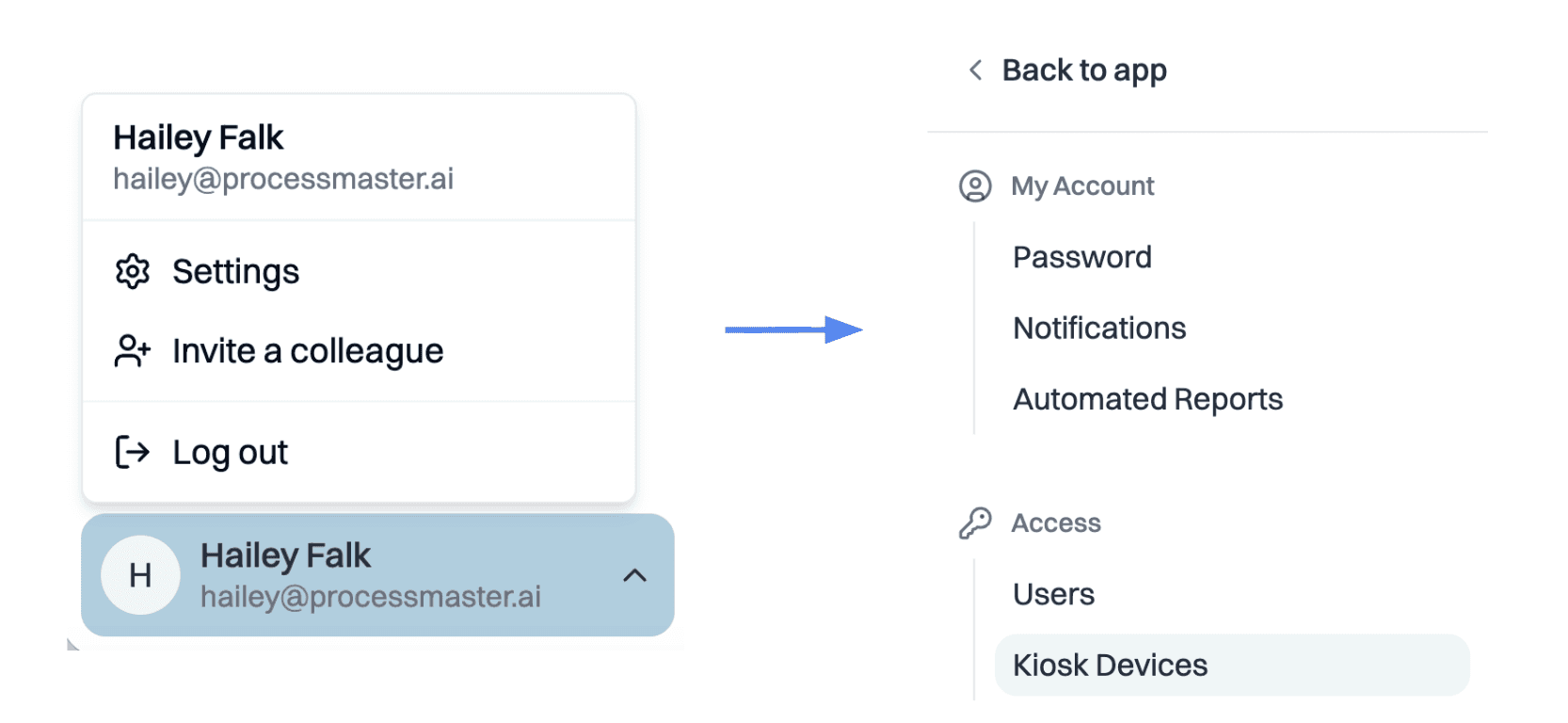
5. Click Start Device Pairing.

6. A modal will appear showing:
A Pairing Code
A QR Code
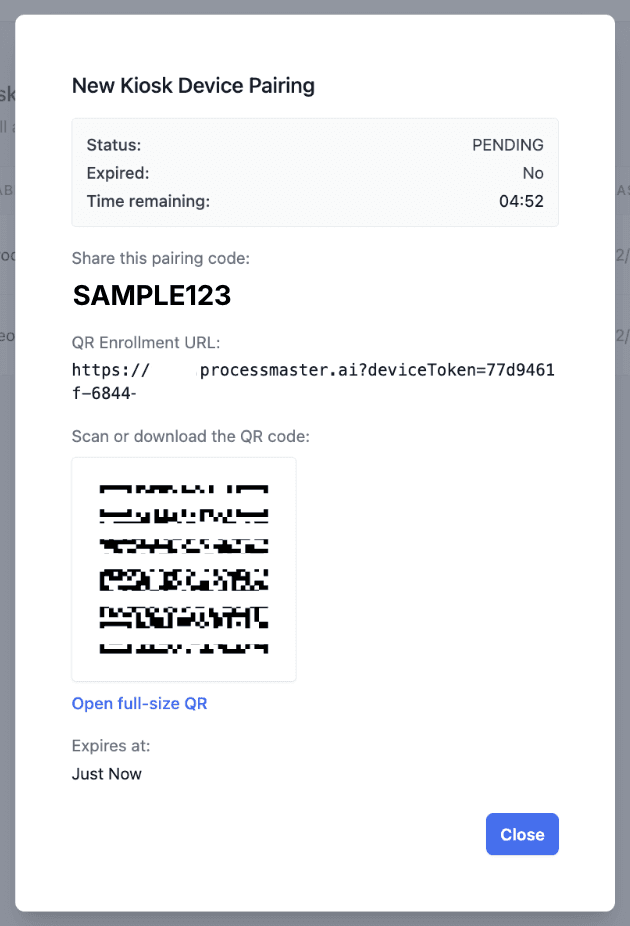
Keep this screen open — you will need it for the next steps.
Step 2: Enroll the Kiosk Device
On the device you want to use as the kiosk, follow one of the options below.
Option A: Tablet or Phone Kiosk
1. Open the camera app on the kiosk device.
2. Scan the QR code displayed on the primary device.
3. Tap the link that appears.
4. Click Go to Homepage to complete enrollment.
Option B: Desktop or Laptop Kiosk
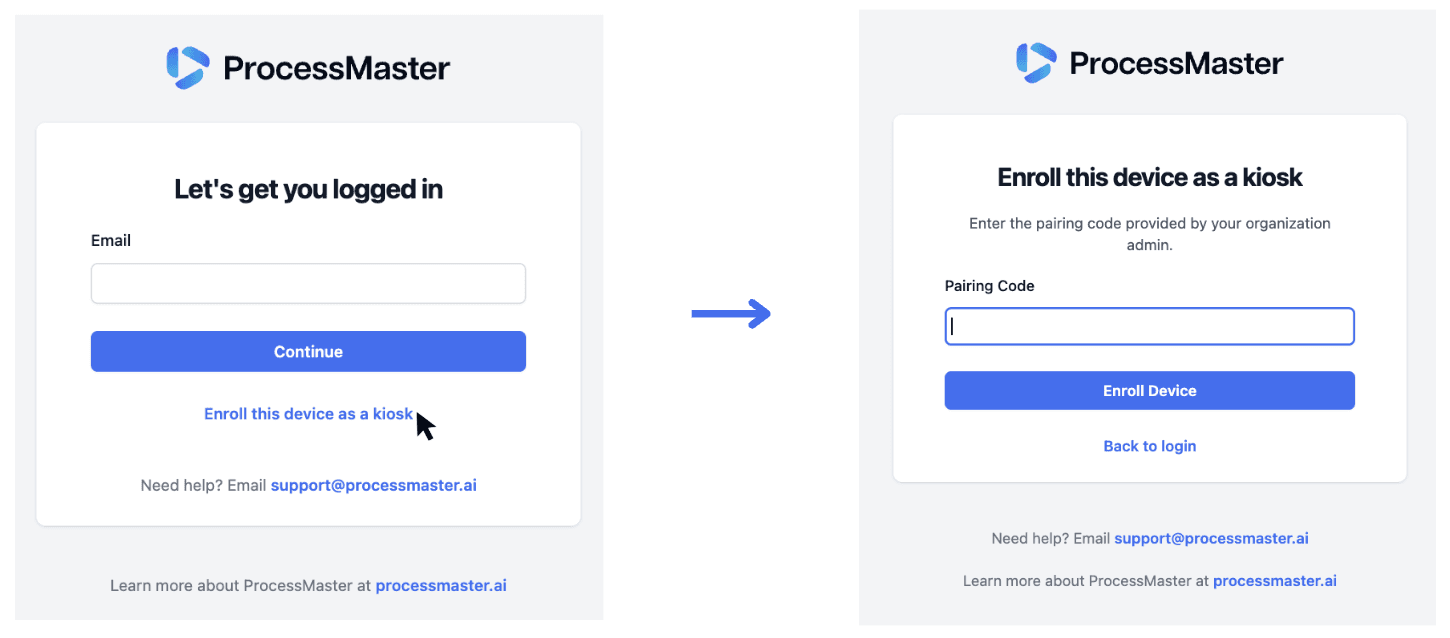
1. On the kiosk device, navigate to app.processmaster.ai on any web browser.
2. Click Enroll this device as a kiosk.
3. Enter the Pairing Code from the primary device.
4. Click Enroll Device.
5. Click Go to Homepage to complete enrollment.
Step 3: Configure the Kiosk
Return to the primary device where you started the pairing.
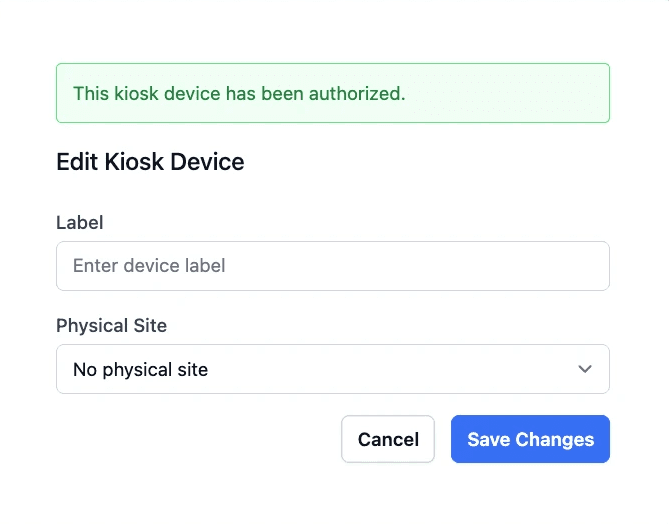
1. In the pairing modal, enter a name for the kiosk under Label.
Example: "Shop Floor Tablet" or "Break Room Computer"
2. Select the appropriate Physical Site where the kiosk is located.
3. Click Save Changes.
Step 4: Use the Kiosk
Your kiosk device is now ready to use.
On the kiosk device, users will see a screen asking “Who’s using this kiosk?”
Users can select their name to begin.
To change users, click Switch User at any time.
You’re All Set 🎉
Your ProcessMaster Kiosk is now active and ready for shared use. This setup allows fast, secure access for multiple users without repeated logins.
Questions?
Contact support@processmaster.ai